¶ Graphatars
A Graphatar is a quick and easy visual representation of user's cryptographic identity. Graphatars are rendered as layered images that allow users to quickly determine if the person they are speaking to is who they think it is.
Click here for more in-depth information about Graphatars™
¶ How do I export/save my Graphatar/ID?
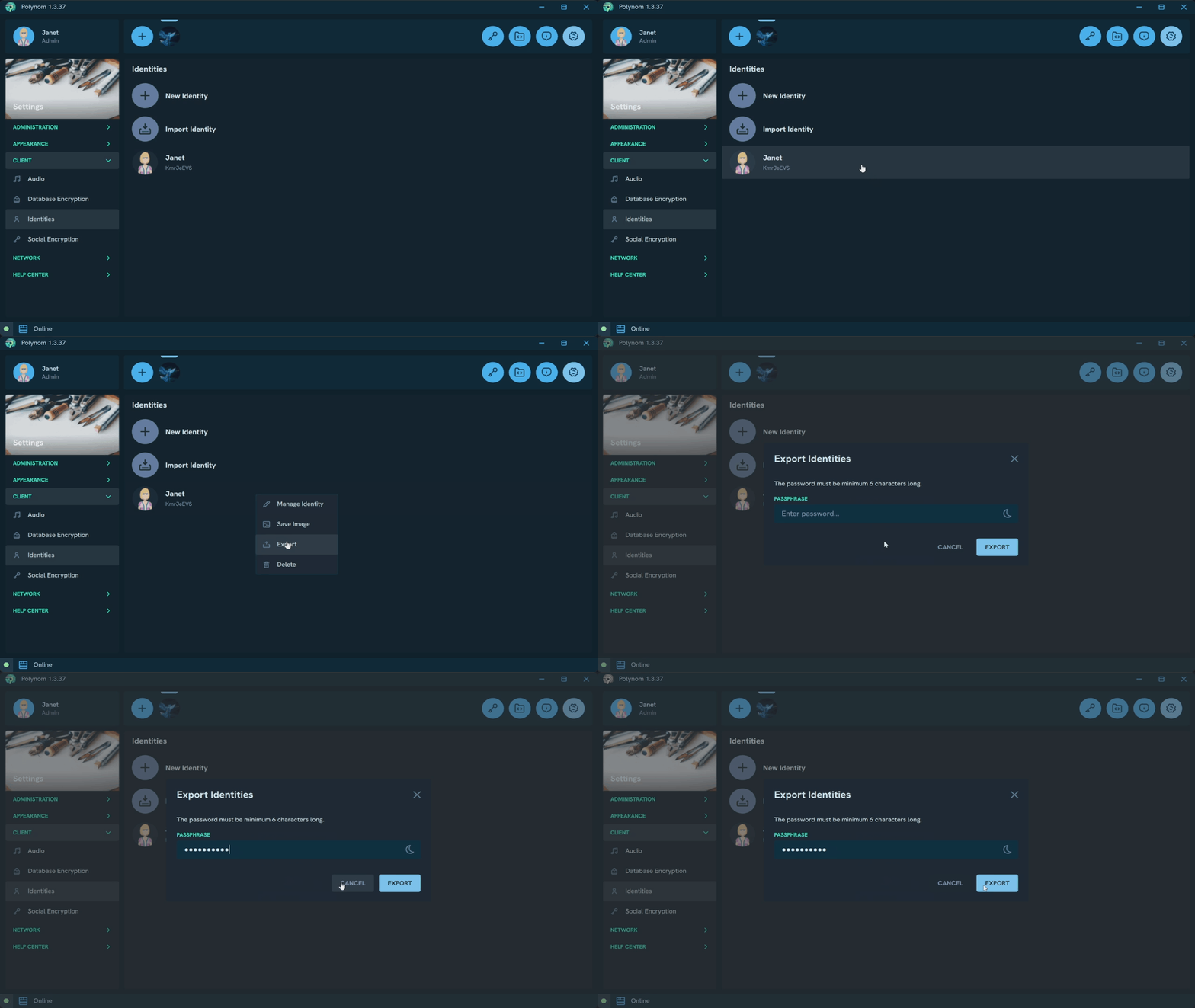
From the Windows desktop application, click the settings (gear) icon in the toolbar. When the 3rd pane opens, click your Graphatar to reveal Manage Identites. This will list all your identites. Right-click the Graphatar you want to export, and choose Export. Please use a secure password. This export file contains the private keys for your identity.
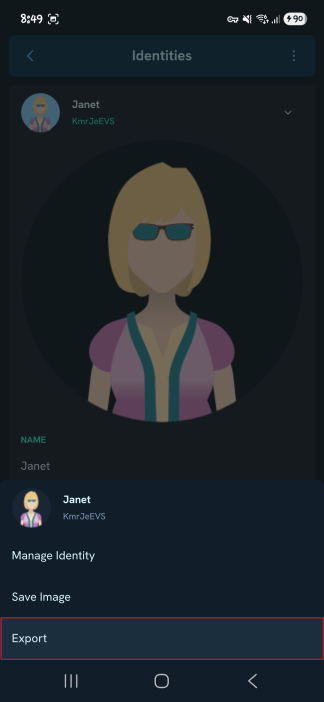
In Android, tap your Graphatar's image from the main navigation page. This will open the Edit User page. From there, tap the 3-dot menu on the top right corner. There is an Export option in the bottom-up popup menu. Please use a secure password. This export file contains the private keys for your identity.
¶ How do I import an existing Graphatar/ID?
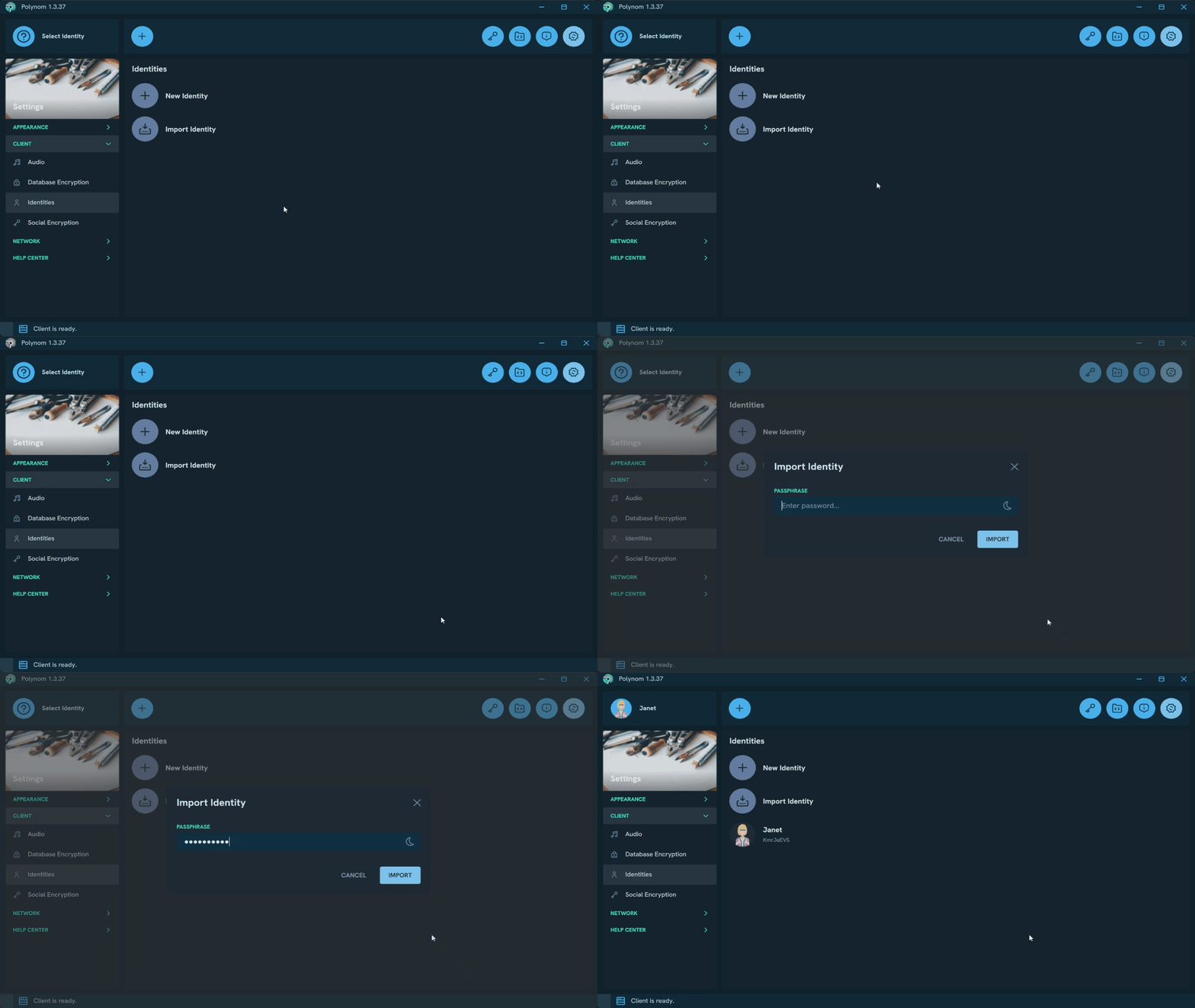
This assumes you have exported your Graphatar previously, and it has been saved in a password protected file such as User.nom
From the Windows desktop application, click the settings (gear) icon in the toolbar. When the 3rd pane opens, click Import Identity.
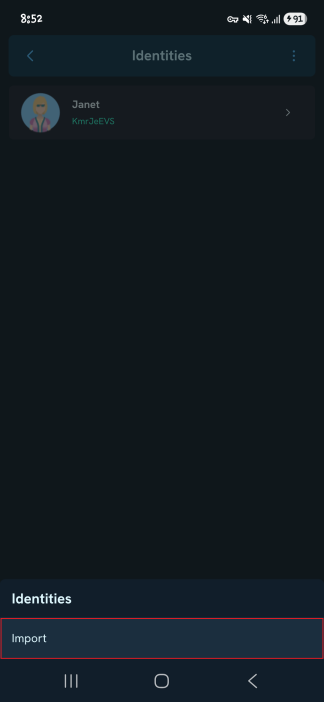
From the Android application, click the settings (gear) icon in the toolbar. Then click Identities. From there, tap the 3-dot menu on the top right corner. There is an Import option in the bottom-up popup menu.
¶ How many possible Graphatars are there?
There are over 15 Decillion possible Graphatars. That's 15,576,890,575,604,480,000,000,000,000,000,000 for those who like things spelled out. This is why sometimes it takes a while to scroll past a lot of not-so-interesting Graphatars until you find one that you love.